Artificial Intelligence Integration in MindDev
MindDev 2026 enables the use of AI for designing experimental protocols. The idea is to simply express your request to an (external) AI so that it can perform actions within the software.
AI in MindDev
Only MindDev versions 2026 and above include the AI communication module.
Operating Principle
In MindDev, AI integration works as follows. The software opens a communication channel to AI clients that wish to connect to it. For this, the communication protocol must be standardized and known by both parties. Thus, MindDev is compatible with the MCP communication protocol (https://en.wikipedia.org/wiki/Model_Context_Protocol)
By default, the internal MCP server in MindDev is not started when the software launches, and specific configuration is required for the communication to function properly. MindDev's preferences include a specific category for AI:
It is thus possible to:
- Configure the MCP server address (the address of the machine running MindDev)
- The communication port (default 8080)
- The automatic launch option upon starting MindDev
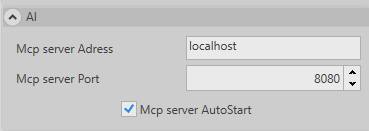
MCP Server Address for Local Use
For local use, meaning with an AI client installed on the same computer, it is perfectly acceptable to enter localhost.
Remote MCP Server
It is possible, when using an AI client on another machine, to register a conventional IP address. Be aware that communication will be constrained by the permissions granted by the Windows firewall.
When the MCP server is started (either at startup or on demand), a new tab opens in the MindDev graphical interface. This tab is primarily used to receive exchange logs with the AI client.
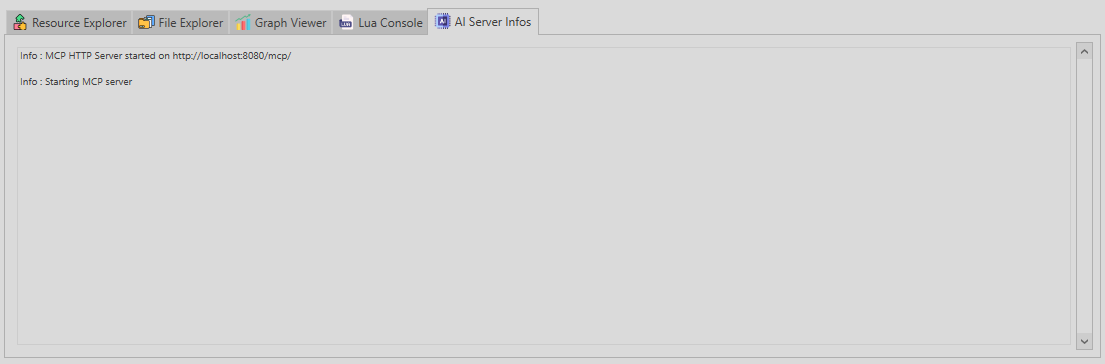
On the MindDev side, the configuration is quite simple; it's a matter of ensuring that the MCP module configuration is consistent with the AI client. For the remainder of this documentation, we will assume that the AI client is running on the local machine.
Configuration (Using Claude)
We will use the Claude desktop client, which supports the MCP protocol.
To add an MCP service to Claude, you need to install an entry point to the MindDev MCP server. For this, edit the Claude configuration file located at:
C:\Users\%username%\AppData\Roaming\Claude\claude_desktop_config.json and write this configuration (assuming the file is initially empty). We assume here that the IP address in MindDev's settings is localhost and the port is 8080.
{
  "mcpServers": {
    "MindDev_mcp_server": {
      "command": "npx",
      "args": [
        "-y",
        "mcp-remote",
        "http://localhost:8080/mcp",
        "--allow-http"
      ]
    }
  }
}
MCP Service Configuration on Client Side
The MCP server address should be adapted if the MindDev configuration is different.
Software Launch Order
You should first launch MindDev and start its MCP server before launching the AI client.
Available Tools
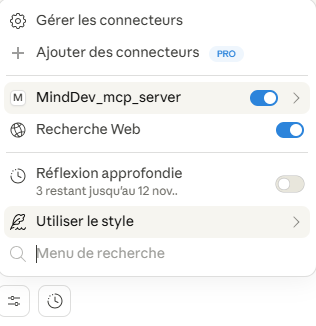
When all software is launched in the correct order, you should be able to see if connections have been properly established in Claude:
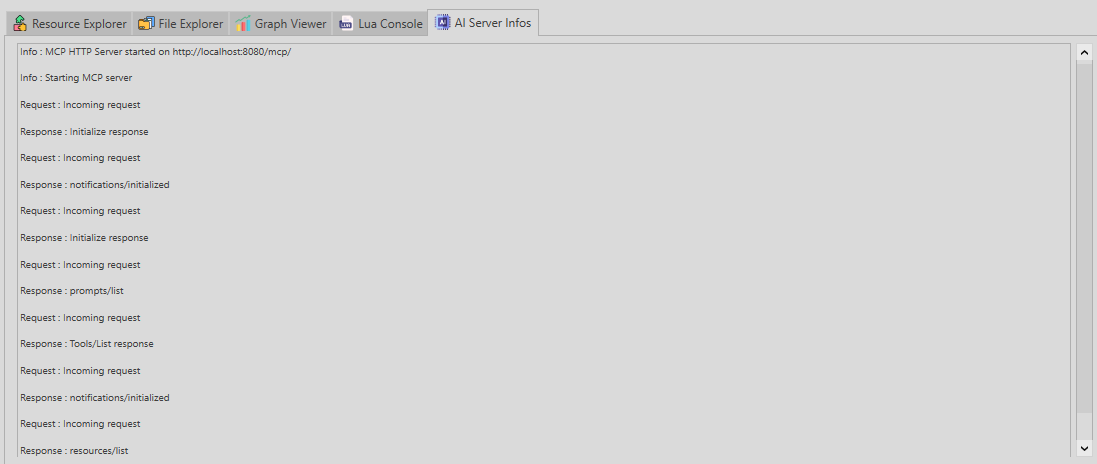
Meanwhile, in MindDev, the AI tab should show feedback about a connection attempt:
Using AI
When connections are established, it should be possible to clearly express your requests to create, add, or modify protocols. The AI has a number of tools it can use to try to respond to user requests:
- Node Operation (to perform modifications on nodes such as property changes, node deletion)
- List Operation (to perform modifications on lists such as additions, clearing a list, etc.)
- Find Nodes (which allows the AI to find a node by its name or type, even partially)
- FileSystem (which allows access to file references in the MindDev data folder - no other external files are accessible)
- Create Protocol (which allows the creation of a new protocol)
- BehaviorGraph (which allows the creation of complex behavior graphs)
- Get Errors and Warnings (which allows the AI to understand why a protocol is behaving incorrectly)
Each of these tools has its own "sub-tools" that the AI can use to respond to requests. Additional tools will be added with progressive updates to MindDev.